How to Watch VR Porn on Oculus Quest
Oculus Quest can play VR porn either by streaming directly in the headset browser or by opening downloaded files in a VR video player. For the scene to look correct in 3D, you need to match the file to the right projection mode, usually 180° or 360°, and turn on the correct stereo setting when required, often SBS. Because this is the original Quest, file quality, bitrate, and headset fit make a bigger difference than many people expect.
This guide explains how to use Oculus Quest for immersive video, which formats suit the headset best, when streaming is enough, when offline playback is smarter, and how to improve clarity if the image looks soft, flat, or unstable.
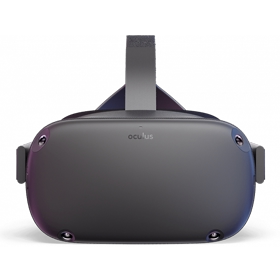
How do you watch VR porn on Oculus Quest?
You watch VR porn on Oculus Quest by opening a video in Oculus Browser or a dedicated VR player, then setting the video to the correct format. If the projection or stereo mode is wrong, the scene may look flat, stretched, or unnatural, even when the file itself is fine.
Why the Original Oculus Quest Still Matters
The first Oculus Quest was the headset that made standalone VR feel practical for everyday users. No gaming PC, no base stations, and no external sensors were required to watch immersive content. That ease of use is still the main reason people keep using it for video.
The downside is that it is older hardware. Compared with newer Quest headsets, the original model has less headroom for huge files and less tolerance for badly encoded streams. Choosing the right source matters more here than it does on newer devices.
Before You Start
- Oculus Quest headset with setup completed
- Wi-Fi connection, ideally 5 GHz, for stable streaming
- Enough free storage if you plan to download files
- Optional PC and USB-C cable for file transfers or Link
- A VR player if you want more control than the browser offers
Which VR Formats Work Best on Oculus Quest?
Oculus Quest can handle a wide range of immersive video formats, but it works best when the file is not pushing the hardware too hard. Good results usually come from balancing realism with practicality rather than chasing the biggest possible file.
- 180° stereoscopic: usually the best format for natural depth and sharpness
- 360° VR: supported, but softer unless the source is high quality
- SBS / side-by-side: often required for real 3D depth
- H.264 and H.265: both common, with HEVC often more efficient for large files
What Makes Oculus Quest Different from Quest 2 or Quest 3?
The original Quest is more limited, but it also has a certain simplicity. It is still easy to use, still very watchable, and still good enough for immersive video if you work within its comfort zone. That usually means choosing cleaner files, avoiding excessive bitrate, and making sure the headset is fitted properly.
Streaming VR Porn on Oculus Quest
Streaming is the most convenient method on the original Quest because it avoids file management and gets you watching quickly. It works best when the source is well encoded and your wireless connection is stable.
- Open Oculus Browser.
- Go to the VR video page you want to watch.
- Press play and enter fullscreen or VR mode if available.
- Set the correct projection, such as 180° or 360°.
- If the image looks flat, enable stereoscopic or SBS mode.
If you want a quick starting point, you can browse our most-watched VR videos to find content that tends to work well in headsets.
When Downloading Is the Better Choice
Offline playback is often better on the original Quest when you want more consistent image quality. It removes network instability and usually gives cleaner results with difficult scenes or larger files.
- Download the file to your computer.
- Connect Oculus Quest by USB-C and allow file access.
- Copy the file into headset storage.
- Open a VR player and load the file.
- Choose the correct projection and stereo settings before judging the image.
Recommended VR Players for Oculus Quest
- DeoVR: widely used and straightforward for headset playback
- Skybox VR: good for local files and cleaner interface preferences
Can You Use Oculus Link with the Original Quest?
Yes. The original Quest can connect to a PC through Oculus Link, which gives you access to desktop VR players and larger local libraries. This is useful if you already keep files on a PC or want extra playback control.
- Install Meta or Oculus PC software
- Connect the headset with a compatible cable
- Enable Link in the headset
- Launch SteamVR or a PC VR player if needed
How to Make the Image Look Better on Oculus Quest
Because this is older hardware, small improvements matter. Good fit, clean lenses, and sensible file choices can improve the result more than people expect.
- Re-seat the headset: the sweet spot is small enough that fit changes matter
- Keep lenses clean: even light smudging reduces perceived sharpness
- Prefer well-lit scenes: they usually look better on older standalone hardware
- Use downloads for demanding files: streaming compression is more visible on older devices
Common Problems on Oculus Quest
- Flat image: wrong stereo mode or projection selected
- Warped perspective: 180° and 360° settings are mixed up
- Buffering: Wi-Fi is too weak or the stream bitrate is too high
- Blur: headset fit, lens cleanliness, or source quality is the problem
What Type of Content Looks Best on the Original Quest?
The original Quest generally looks best with clean 180° scenes, sensible bitrate, and strong lighting. Highly compressed files or very ambitious 360° video can still work, but they are more likely to expose the headset’s age.
For better consistency, browse our best VR porn websites guide or explore performer pages such as Ava Addams.
Browse More VR Porn for Oculus Quest
You can keep testing your setup by browsing new VR porn videos, comparing with Quest 2, or returning to the main how to watch VR porn guide.
Related Guides
- How to Watch VR Porn on Any Headset
- How to Watch VR Porn on Meta Quest 2
- How to Watch VR Porn on a Smartphone
Frequently Asked Questions
How do you watch VR porn on Oculus Quest?
You can watch VR porn on Oculus Quest by streaming in Oculus Browser or by downloading files and opening them in a VR video player. Then you choose the correct projection and stereo settings for proper 3D playback.
Is streaming or downloading better on Oculus Quest?
Downloading is often better because it avoids buffering and gives more stable image quality. Streaming is easier, but it depends more heavily on Wi-Fi strength and bitrate.
Why does a VR video look flat on Oculus Quest?
A VR video usually looks flat when the wrong stereo mode is selected or stereoscopic playback is off. Switching to SBS often solves it.
Which VR video players are best for Oculus Quest?
DeoVR and Skybox VR are two of the most commonly used players because they make projection and stereo settings easy to manage.
Can Oculus Quest play 180° and 360° VR videos?
Yes. Oculus Quest supports both 180° and 360° VR videos, though 180° stereoscopic content usually gives the best balance of depth and clarity.
Why is VR porn blurry on Oculus Quest?
Blur is often caused by poor headset fit, dirty lenses, weak source quality, or a file that is pushing the hardware too hard.
Is the original Oculus Quest still good for VR porn?
Yes. It is older hardware, but it can still provide a strong immersive video experience when you use the right format, sensible bitrate, and a good playback setup.
Can Oculus Quest use Link for VR video playback?
Yes. Oculus Quest can connect to a PC through Link, which lets you use desktop VR players and access larger local libraries.