How to Watch VR Porn on HP Reverb G2
HP Reverb G2 plays VR porn through a Windows PC rather than as a standalone headset. In practice, that means launching Windows Mixed Reality or SteamVR, opening a compatible VR video player, and choosing the correct 180°, 360°, and stereoscopic settings for each file. When everything is configured properly, Reverb G2 can deliver some of the sharpest VR video playback available on a consumer headset.
This guide covers how to set up HP Reverb G2 for immersive video, when to stream versus when to use local files, which VR players work best, and how to fix common problems such as flat 2D playback, blur, incorrect perspective, or dropped frames.
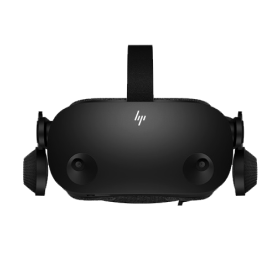
How do you watch VR porn on HP Reverb G2?
You watch VR porn on HP Reverb G2 by running the headset from a Windows PC, then opening the video in a VR-capable player inside Windows Mixed Reality or SteamVR. Unlike browser-first standalone headsets, Reverb G2 works best when you treat it like a high-resolution PC display for immersive media.
Why HP Reverb G2 Is Different from Standalone Headsets
Reverb G2 does not rely on a mobile chipset or limited onboard storage in the same way a standalone headset does. Its strength is image clarity. If your PC is good enough, the headset can show very fine facial detail, cleaner text, and a sharper centre image than many cheaper all-in-one devices.
The trade-off is that setup is less plug-and-play. Software, GPU performance, render scale, and player choice all have a bigger effect on the final result.
What You Need Before You Start
- HP Reverb G2 connected to a Windows PC
- Windows Mixed Reality Portal installed
- Steam and SteamVR installed for the widest player support
- A GPU strong enough for high-resolution VR playback
- A VR video player with 180°, 360°, and SBS controls
Best Video Types for HP Reverb G2
Because Reverb G2 is known for clarity, it benefits most from files that actually contain enough detail to take advantage of the display. Lower quality sources will still play, but the headset really shines with clean, high-bitrate files.
- 180° stereoscopic: usually the best mix of sharpness, depth, and comfort
- 360° VR: works well, but needs more resolution to avoid looking soft
- SBS / side-by-side: one of the most common stereo modes for correct 3D depth
- H.265 / HEVC: often better for high quality at manageable file sizes
Set Up HP Reverb G2 for VR Video Playback
- Connect the headset and launch Windows Mixed Reality Portal.
- Check that your GPU drivers are current.
- Install and open SteamVR if your player depends on it.
- Run seated calibration or centre your view before playback.
- Adjust headset fit and IPD until the middle of the image looks crisp.
Can You Stream VR Porn on HP Reverb G2?
Yes, but streaming on Reverb G2 is usually less about the headset and more about the software path you choose. Some users stream through a desktop browser mirrored into VR, while others use a player or environment inside SteamVR. The headset can handle streaming, but poor bitrate or unstable connection will waste the display’s strengths.
- Launch Windows Mixed Reality or SteamVR.
- Open the browser or VR playback environment you prefer.
- Start the video stream.
- Match the file to the correct projection mode, such as 180° or 360°.
- Enable stereoscopic or SBS mode if the image appears flat.
Why Local Playback Usually Looks Better on Reverb G2
Reverb G2 rewards quality. That means local playback is often the better choice because it removes network instability and preserves more detail. If you are using a headset known for sharpness, it makes sense to feed it the cleanest source you can.
- Download the VR video file to your PC.
- Open your preferred VR player inside SteamVR or WMR.
- Load the file directly from local storage.
- Choose the correct projection and stereo mode before playback.
- Adjust scale, zoom, or environment only after the base format is correct.
Recommended VR Video Players for HP Reverb G2
- Skybox VR: simple interface, good local playback, strong format handling
- DeoVR: popular for both local files and streamed content
- Whirligig: useful if you want more manual playback control
What Makes Video Look Wrong on Reverb G2?
On this headset, most playback problems come from one of three things: the wrong file mode, the wrong render settings, or PC performance bottlenecks. Because the display is sharp, mistakes are obvious.
- Flat image: stereo mode is wrong or disabled
- Warped perspective: the video is set to the wrong projection
- Blur: fit, IPD, player scaling, or source quality is off
- Stutter: your PC, player settings, or SteamVR render scale is too demanding
Performance Tuning Tips
Reverb G2 can tempt people into pushing settings too high just because the screen is capable of it. In practice, stable playback matters more than forcing every slider upward.
- Do not overshoot SteamVR supersampling: more is not always better
- Prefer local files for large videos: especially 6K and above
- Close background apps: browsers, launchers, and overlays can hurt smoothness
- Use a sensible render scale: enough for clarity, not so high that frames drop
Image Quality Tips Specific to Reverb G2
- Fit matters: even small headset shifts can affect sharpness
- IPD matters: get this right before judging a file
- Source quality matters: the headset will expose weak encodes very quickly
- Player choice matters: different apps handle scaling and environments differently
When HP Reverb G2 Is the Better Choice
If you already have a Windows PC and care more about sharpness than convenience, Reverb G2 is still a very strong headset for immersive video. It makes the most sense for users who want cleaner local playback rather than the easiest possible setup.
Browse VR Porn for High-Resolution Headsets
You can test your setup by browsing new VR porn videos, comparing Valve Index, or returning to our main how to watch VR porn guide for broader headset support.
Related Guides
- How to Watch VR Porn on Any Headset
- How to Watch VR Porn on Meta Quest Pro
- How to Watch VR Porn on Valve Index
Frequently Asked Questions
How do you watch VR porn on HP Reverb G2?
You watch VR porn on HP Reverb G2 by using a Windows PC with Windows Mixed Reality or SteamVR and opening the video in a compatible VR player. Then you set the correct projection and stereo mode for the file.
Is streaming or downloading better on HP Reverb G2?
Downloading is usually better, especially if you want to take advantage of the headset’s sharp display. Streaming is possible, but local files usually preserve more detail and avoid buffering.
Why does a VR video look flat on HP Reverb G2?
A VR video usually looks flat when stereoscopic playback is disabled or the wrong mode is selected. In many cases, switching to SBS fixes it.
Do you need SteamVR for HP Reverb G2?
Not always, but SteamVR is highly recommended because many VR video players and playback environments work best there.
Can HP Reverb G2 play 180° and 360° VR videos?
Yes. HP Reverb G2 can play both 180° and 360° VR videos, though 180° stereoscopic content usually looks sharper and more natural.
Why is VR porn blurry on HP Reverb G2?
Blur is often caused by poor fit, wrong IPD, player scaling, weak source quality, or render settings that are not well balanced.
Which VR player works best on HP Reverb G2?
Skybox VR, DeoVR, and Whirligig are all commonly used. The best one depends on whether you care more about simplicity or manual control.
Is HP Reverb G2 still good for VR porn?
Yes. If you already have the headset and a capable PC, it is still a strong choice for high-resolution immersive video because of its sharp image and strong local playback quality.