Watching VR Porn on Oculus Rift & Rift S
Oculus Rift and Rift S use a PC to run VR content, which allows smooth playback of high-resolution 180° and 360° videos. You can watch by streaming in a browser or by opening downloaded files in a VR player. To see proper depth, always match the video to the correct projection and stereo format, typically SBS.
This guide focuses on how Rift headsets handle VR video differently from standalone devices, when streaming is sufficient, when local playback is better, and how to avoid common issues like flat images, stutter, or incorrect scaling.
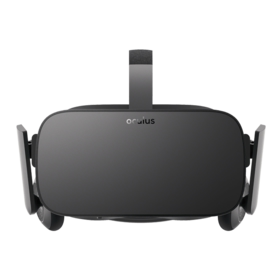
What Makes Rift Different from Standalone Headsets?
Rift and Rift S rely entirely on your computer’s hardware. That means video playback quality depends more on your GPU and less on the headset itself. When your system is capable, high-bitrate files tend to look cleaner and more stable than on standalone devices.
The trade-off is that setup is slightly more involved, but once configured, playback is usually more consistent and easier to control.
Basic Setup Requirements
- Oculus Rift or Rift S headset
- Windows PC with VR-capable GPU
- Meta/Oculus desktop software installed
- Up-to-date graphics drivers
- VR video player (optional but recommended)
Which VR Video Types Work Best?
Rift headsets support all common immersive formats, but some combinations feel more natural than others.
- 180° stereoscopic: usually the most comfortable and realistic format
- 360°: works well, but needs strong source quality
- SBS format: commonly required for proper depth
- Higher resolutions: benefit from PC decoding power
Streaming VR Video on Rift
Streaming works well when the video source is properly encoded and your connection is stable.
- Open a browser such as Firefox on your PC.
- Navigate to your chosen VR video.
- Start playback and enter VR mode.
- Put on the headset and confirm projection settings.
- Adjust stereo mode if the scene lacks depth.
For quick testing, you can use our most viewed VR videos to find content that typically streams reliably.
Local Playback (Recommended for Best Results)
Playing files directly from your PC removes compression and buffering issues, which is especially noticeable with larger files.
- Download the video file to your computer.
- Launch a VR video player.
- Load the file and select the correct projection.
- Enable stereo mode if required.
Common VR Players for Rift
- Skybox VR
- DeoVR
- Whirligig
How to Improve Playback Quality
Rift performance is mostly determined by your system. Small adjustments can make a noticeable difference.
- Keep GPU drivers updated
- Close background programs before playback
- Avoid excessive render scaling or supersampling
- Use local files when streaming struggles
Typical Problems and Quick Fixes
- No 3D depth: enable stereo mode (often SBS)
- Distorted image: incorrect projection setting
- Playback lag: system load too high or file too large
- Double vision: wrong stereo configuration
Is Rift Still Worth Using for VR Video?
Even though Rift hardware is no longer produced, it remains highly capable for VR video. As long as your PC is strong enough, it can handle demanding files and maintain smooth playback.
Compared to standalone headsets, Rift offers more control and fewer limitations when working with high-quality content.
Explore More
Final Notes
Oculus Rift and Rift S still provide a reliable way to watch immersive video. With the right setup, correct projection settings, and a good source file, the experience remains smooth and consistent across both 180° and 360° formats.