 GuidePhone
How to watch · iPhone, Android and Cardboard-style holders
How to watch VR porn on Phone
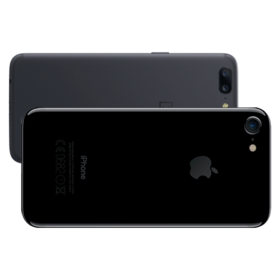
Any modern phone can show our trailers in VR. You need a phone VR holder (Cardboard-style, from a few pounds) for the 3D effect; without one you can still look around by moving the phone.
PirouVR · 3 steps · about a minute · free trailers, no account needed
Watch a free trailer in VR
- Open a scene in your phone's browser
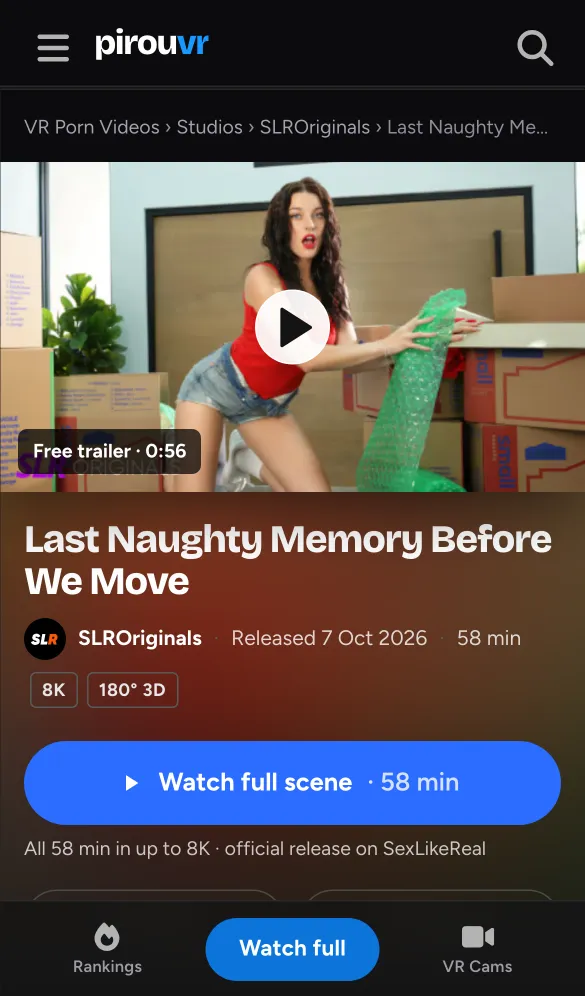
Go to pirouvr.com in Safari or Chrome, open a scene and press play on the free trailer.
- Tap the VR button
Tap the headset icon in the player. On iPhone, allow motion and orientation access when asked - without it the picture won't follow your head.
- Put the phone in the holder
Turn the phone sideways, slot it into the holder and look around. To leave VR, take the phone out and tap the screen to bring back the player's controls.
Gear VR and Daydream
Samsung Gear VR and Google Daydream are no longer supported by their makers, and their apps no longer work. The phone inside them still does: use it with any phone VR holder and the steps above.
If something's not right
The picture is flat or shows two images side by side
You are watching the trailer on a flat screen, not in VR mode yet. Press the VR button (the headset icon) in the player's controls. In VR mode the two images merge into one 3D picture around you.
It looks blurry
Open the player's settings (the gear) and pick a higher quality - the list shows what each trailer has, up to 8K. The player starts on a quality most connections can handle. On Wi-Fi, a 5 GHz network close to the router helps most.
It stops to buffer
Pick a lower quality in the player's settings, or move closer to your router. Higher qualities need a fast, steady connection.
The picture looks warped, upside down or doubled in VR
That shouldn't happen - the player sets each scene's format from our catalogue, so a wrong picture means we have that scene's format wrong. Tell us which scene and we'll fix it.
The picture doesn't move when I turn my head
Your phone isn't sharing its motion sensors with the browser. On iPhone: reload the page, tap the VR button again and choose Allow. On Android, check that the browser isn't blocking motion sensors in its site settings.
Questions
Do I need an app to watch VR porn on my phone?
No - the phone's browser does it. You only need a VR holder for the 3D effect.